Workspace Management
Windmill CLI can be used on several workspaces from several instances.
List workspaces
You can list all the workspaces you have access to using:
wmill workspace
The currently selected workspace will be underlined.
Adding a workspace
The wmill CLI is capable of handling working with many remotes & workspaces. Each combination of remote & workspace is registered with together with a name locally using:
wmill workspace add [workspace_name] [workspace_id] [remote]
You can login to the workspace with a token or directly from browser.
The new workspace will automatically be switched to.
Arguments
| Argument | Description |
|---|---|
workspace_name | The name of the workspace. Note: This is a name used to refer this workspace locally on your machine. It can be same or different from your remote instance |
workspace_id | The ID of the workspace.remote. The workspace ID is displayed in the switch workspace menu. |
remote | The remote URL. |
Options
| Option | parameter | Description |
|---|---|---|
-c, --create | None | Create the workspace if it does not exist. |
--create-workspace-name | <workspace_name> | Specify the workspace name. Ignored if --create is not specified or the workspace already exists. Defaults to the workspace ID. |
--create-username | <username> | Specify your own username in the newly created workspace. Ignored if --create is not specified or the workspace already exists. Defaults to "admin". |
Examples
- Prompts for the workspace name, ID, and remote URL.
wmill workspace add
- Adds a workspace with the name "MyWorkspace", ID "workspace123", and remote URL "https://example.com/myworkspace".
wmill workspace add MyWorkspace workspace123 https://example.com/myworkspace
- This command creates a workspace with the name "MyWorkspace2," using the provided username "john.doe."
wmill workspace add --create --create-workspace-name MyWorkspace2 --create-username john.doe
Switch Workspaces
The wmill workspace switch command allows you to switch to another workspace. It requires specifying the target workspace as a positional argument and performs the necessary operations to switch to that workspace. Here is the documentation for the wmill workspace switch command:
wmill workspace switch <workspace_name>
Arguments
| Argument | Description |
|---|---|
workspace_name | The name of the workspace to switch to. |
Examples
- Switch to the workspace named "MyWorkspace".
wmill workspace switch MyWorkspace
Selected Workspace
The currently selected workspace will be used for all operations. This workspace is underlined in the list of workspaces.
Removing a workspace
The wmill workspace remove command allows you to remove a workspace from the CLI.
wmill workspace remove <workspace_name>
Arguments
| Argument | Description |
|---|---|
workspace_name | The name of the workspace to remove. |
Examples
- Remove the workspace named "MyWorkspace".
wmill workspace remove MyWorkspace
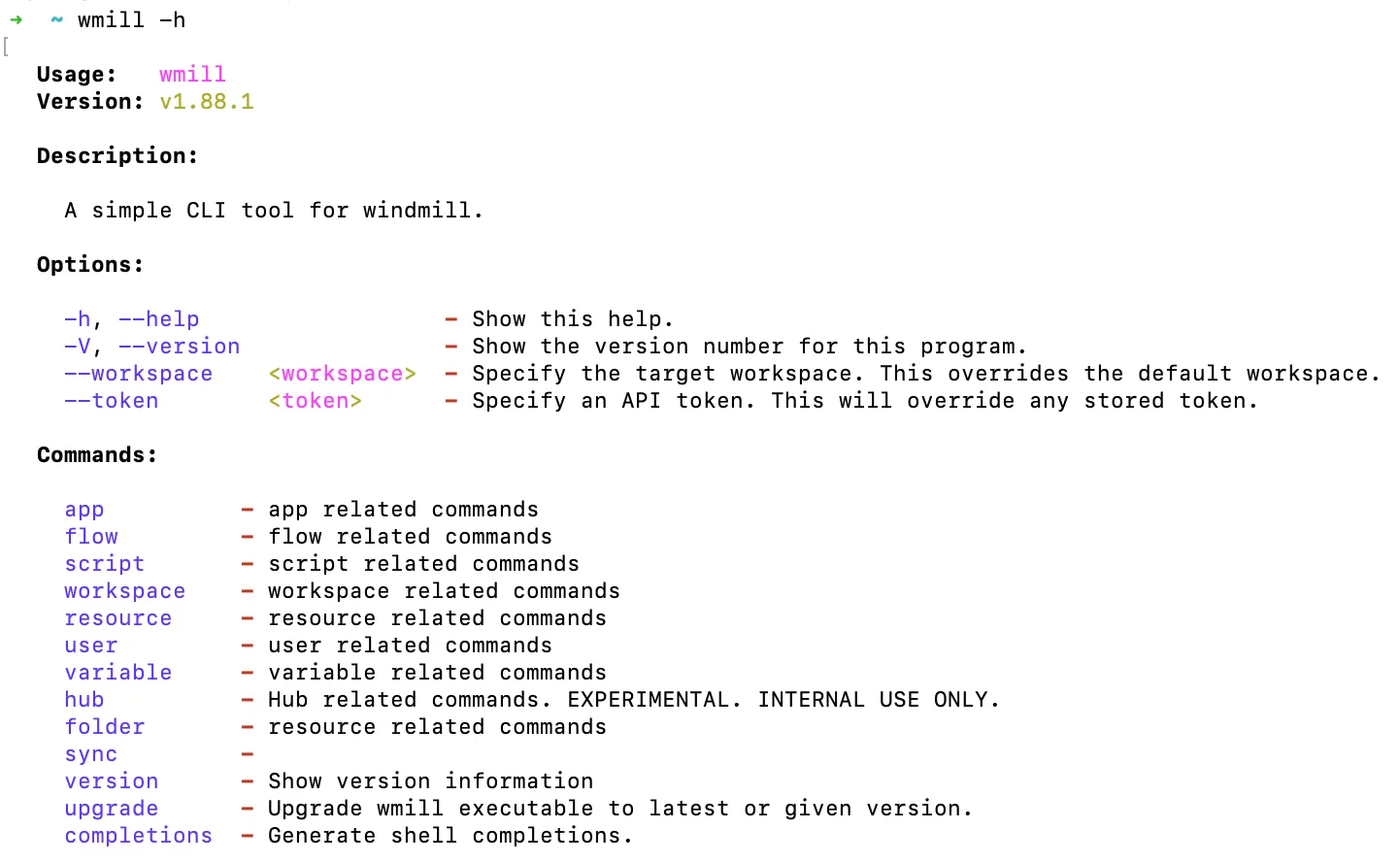
At any point you can ask help with the command -h after a given instruction to see the list of options & commands.
Example here just using windmill -h:
whoami
The wmill workspace whoami command allows you to display the currently active user and the active workspace.
wmill workspace whoami